
Loves Mac-OS UI? but can’t give-up Ubuntu. Here is something for you..
Ubuntu 20.04 like it’s previous versions has a very simple but powerful UI. Powerful as it may be it still lacks (in my opinion) the aesthetic touches of Mac-OS. But what sets Ubuntu apart is that there is nothing which can’t be solved. Here’s a guide to make your Ubuntu look and feel like macOS.
1. Install a Gnome Tweak Tool
Installing Gnome-Tweak-Tools is the easiest way to go about Customizing Gnome-shell. It provides Graphical options to modify GTK-themes, icon-themes, extensions and many more. Run the following commands to install it:
sudo apt-get update
sudo apt-get install gnome-tweak-tool
2. Install a Mac-GTK Theme
There are many themes out there which might satisfy your criteria but my personal favourite is Mojave macOS theme. You can download it from here.
Once You’ve downloaded your chosen theme move the folder (after extracting if achieved) to ~/.themes.
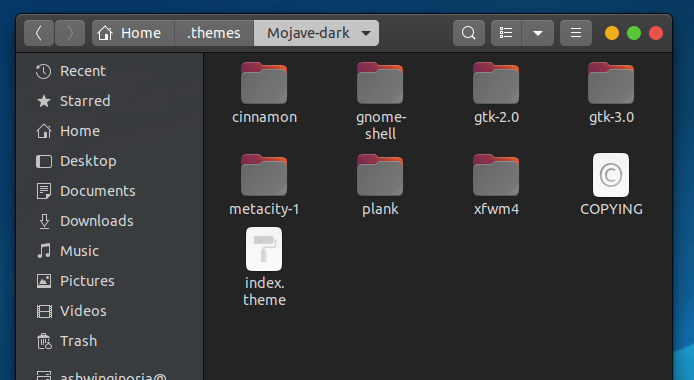
If you can not see the ~/.themes folder it’s because all files/folders starting from ‘.’ are hidden in Ubuntu, If so press ctrl + H to toggle show hidden files option in your file browser. If you still can’t see the .themes folder just create a new one :).
Now to set the theme open Gnome-Tweak-Tool > Appearance > Application and select your chosen theme. Then go to Gnome-Tweak-Tool > Window Titlebars > placement and select left.
Some of the themes come along with a shell theme. By-Default changing the shell theme is disabled in ubuntu, to enable this you’d have to install the user-theme extension.
Here is a guide on how to install gnome-shell-extensions to help you install the user-themes Extension.
Once it is installed open Gnome-Tweak-Tool > Extensions and enable user-themes. Now go to the Appearance Tab and set the shell theme to your chosen theme from Gnome-Tweak-Tool > Appearance > Shell.
3. Install a Mac-Icon Theme
Like the GTK Theme, there are many different icon themes. Here are a few links
The installation process for icons theme is similar to the installation of GTK theme. Download your chosen icon theme. and move it’s contents to ~/.icons folder.
Now to set the icon theme open Gnome-Tweak-Tool > Appearance > icons and select your downloaded icon set.
4. Install plank
Dock is one of the most noticeable UI components so it makes a huge difference in the user experience. Plank is one of the most trusted docks for ubuntu. It is highly customizable and almost all the modern dock are developed using planks source code. Plank can directly be installed the ubuntu terminal by sudo apt install plank.
once plank is downloaded, run plank and change its preferences to suit your needs (preferences can be accessed by plank --preferences) and add it to the startup applications. Now to make it look more like macOS you can install Mac Dark Mode Plank theme. You can download it from here.
Once it’s downloaded move its contents to ~/.local/share/plank/themes and then you’d be able to set this theme from the plank preferences.
Finally, you can remove the ubuntu’s default dock from Gnome-Tweak-Tool > extensions and disable ubuntu-dock. If it does not disables the dock then press super + a and open extensions and disable the dock from there.
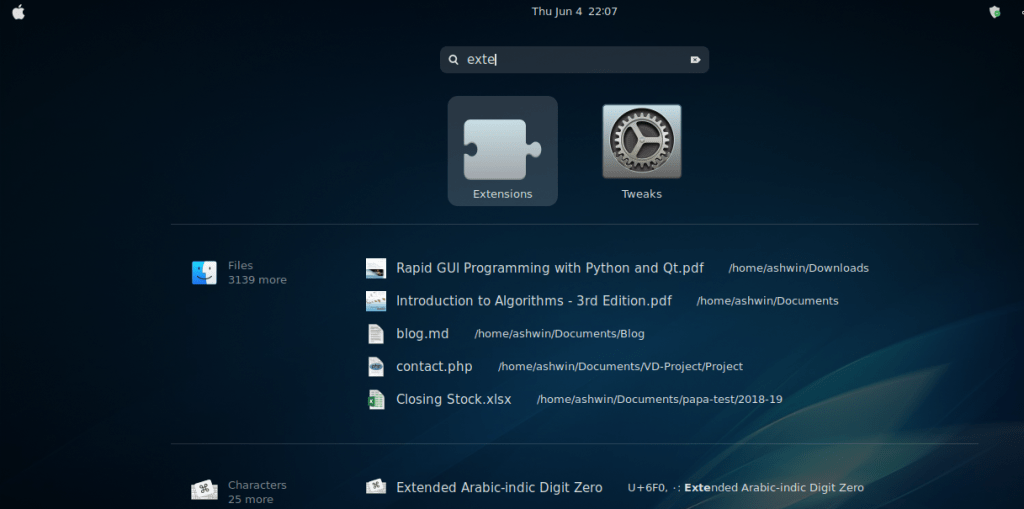
5. Set-Up Touchpad gestures (for Laptop Users)
Touchpad gestures are one of the most useful features in any system. fusuma in ubuntu provides users to customize this very effectively. In order to install fusuma type the following commands in your terminal.
sudo gpasswd -a $USER input
sudo apt-get install gem
sudo apt-get install libinput-tools
sudo apt-get install xdotool
sudo apt-get install ruby
sudo -E gem install fusuma
Once you’ve installed fusuma you can configure it’s config file (~/.config/fusuma/config.yml) as per your need. My config file is as follows
swipe:
  3:
    left:
      command: 'xdotool key alt+shift+tab'
    right:
      command: 'xdotool key alt+tab'
    up:
      command: 'xdotool key super'
    down:
      command: 'xdotool key super'
  4:
    left:
      command: 'xdotool key ctrl+alt+Down'
    right:
      command: 'xdotool key ctrl+alt+Up'
    up:
      command: 'xdotool key ctrl+alt+Down'
    down:
      command: 'xdotool key ctrl+alt+Up'
pinch:
  in:
    command: 'xdotool key ctrl+plus'
  out:
     command: 'xdotool key ctrl+minus'

threshold:
  swipe: 0.4
  pinch: 0.03

interval:
  swipe: 0.8
  pinch: 0.05
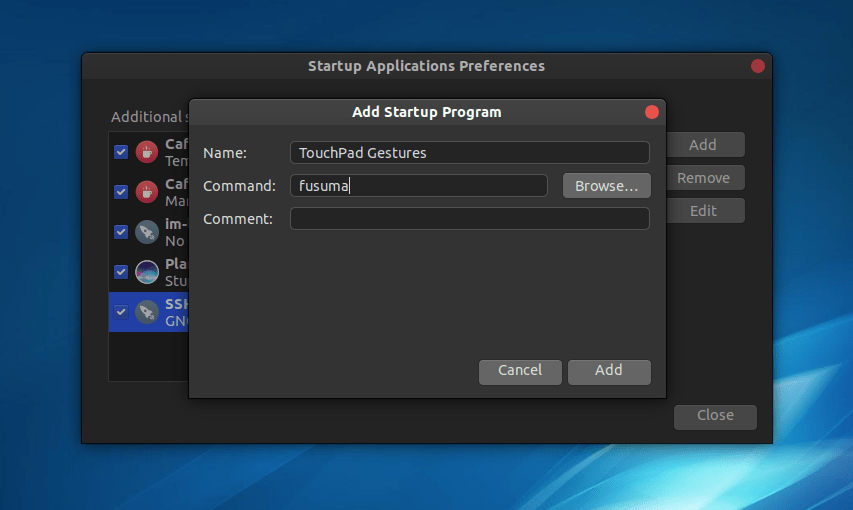
Now add fusuma to your start-up applications. Since fusuma doesn’t have a desktop entry it will have to be added manually. Go to Start-Up Applications from the application menu and click add. you could put anything you like in the name and comment section but in the command section, you have to write fusuma.
Final Steps
- Change your desktop’s wallpaper.
- Post a screenshot here.
- sit back and enjoy your new UI :).
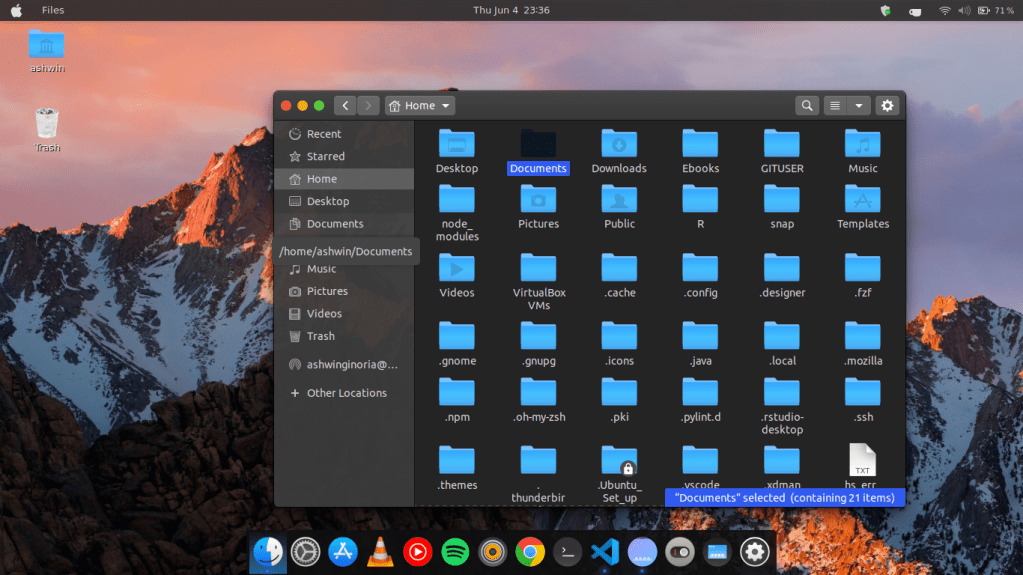
Here’s how my desktop looks after transformation.
PS: If you really like the macOS’s multiple wallpaper thing, see the Walkpaper Extension.
Ciaó.
Cogitare Et Credere
Co-Authored by-
Ashwin Ginoria
B.Tech Computer Science & Engineering
IIT Mandi
Codeforces Expert & Open-Source Developer
 TᗯIᑎ ᖇEᗩᒪITY